Navigating a Workspace#
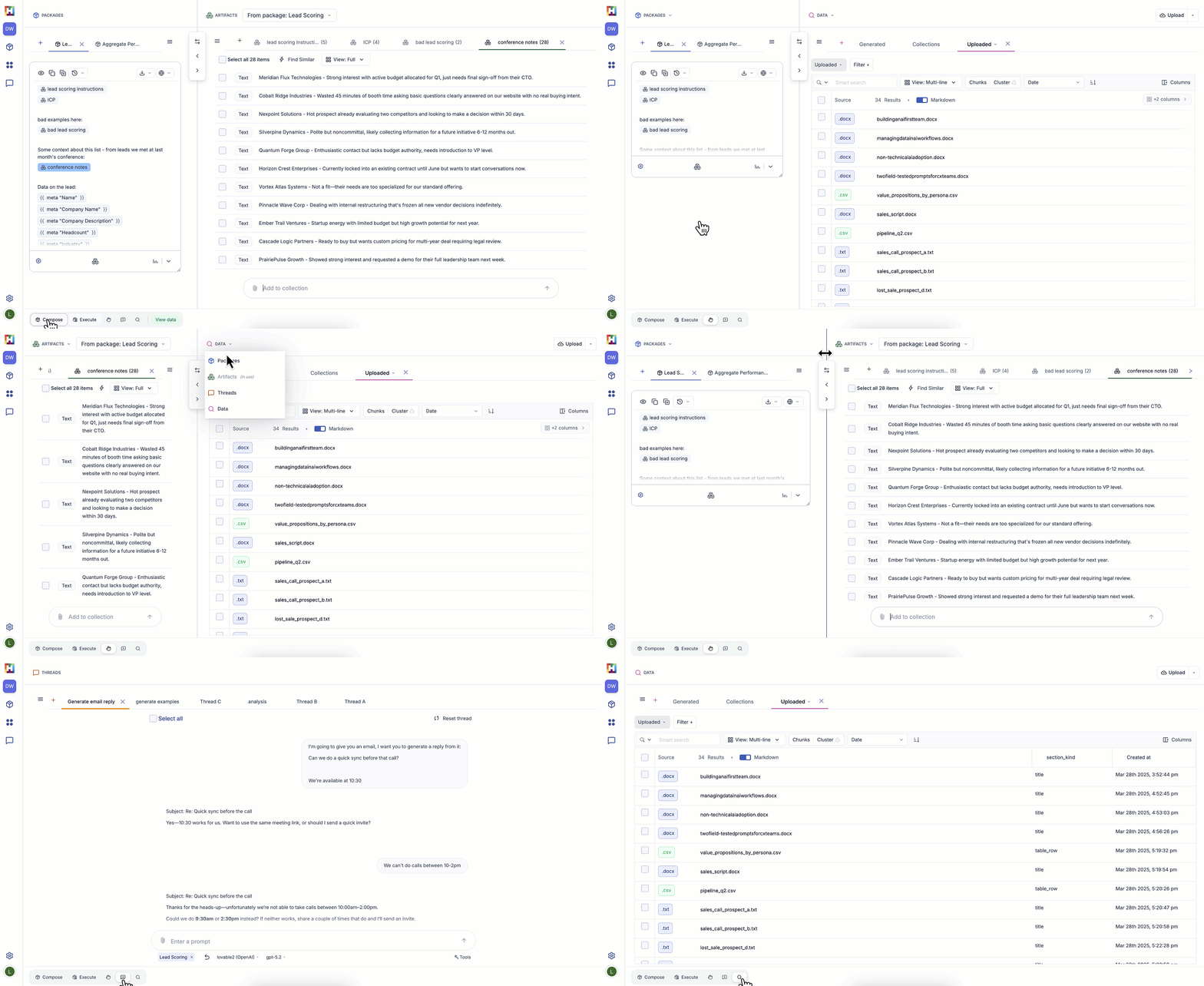
We built the following configurations to fit most workflows, while still allowing you the freedom to arrange your workspace however you like.
Compose Mode#
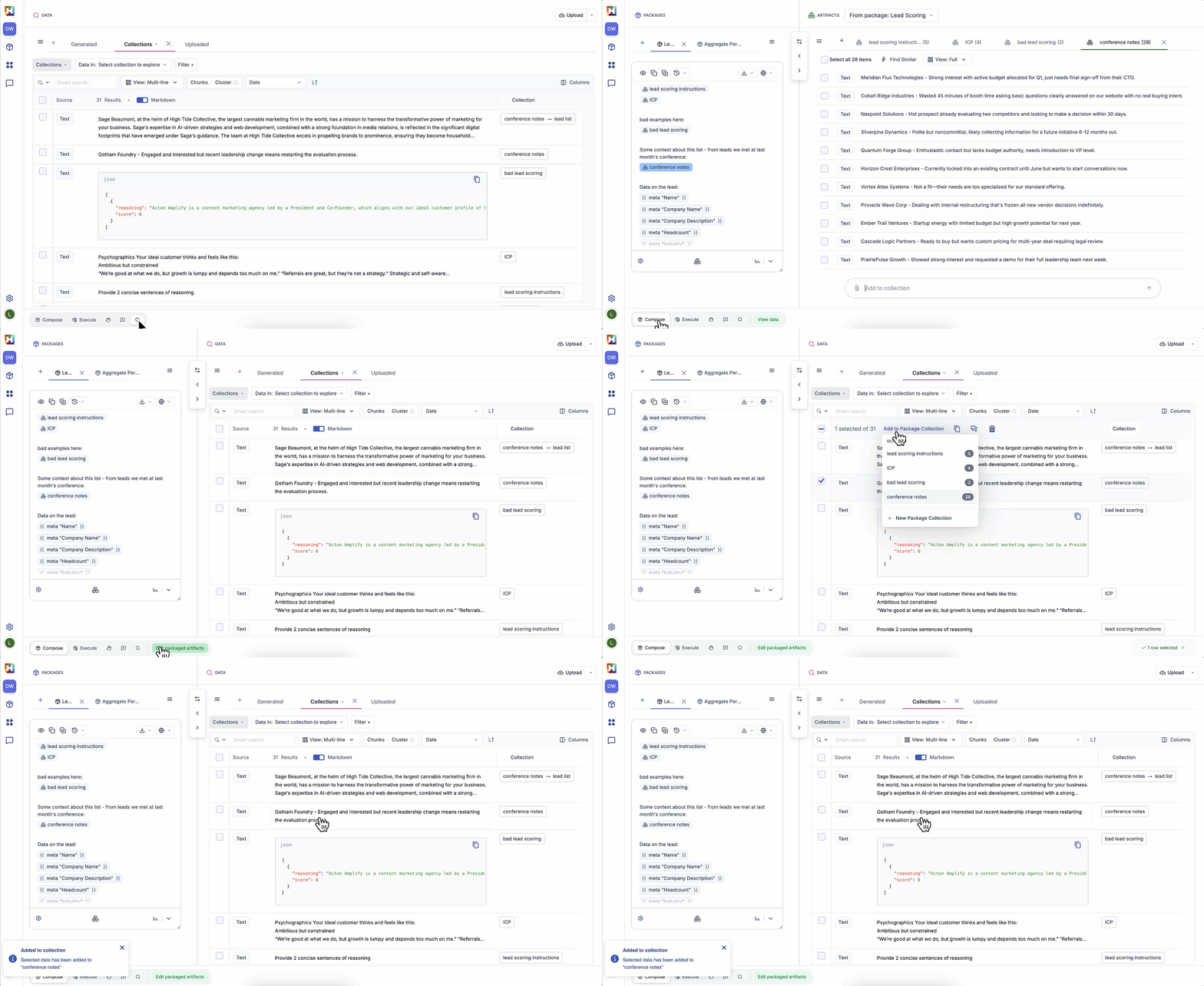
When building a package, enter Compose mode. Compose mode allows you to see your package and its artifacts in a split screen view. You can also navigate to the data view to add data to your artifacts. Learn more about composing packages.
Execution Mode#
Once you’ve composed a package, you can execute it over input data to enable two important capabilities.
- Human-led iteration on the package behavior. Every execution keeps its connection to the source data and the package that produced it. You can view your results and your inputs side by side, and assess previous executions.
- Transform raw data into AI-ready datasets (ex: deriving the summaries of sales calls, extracting key information in json format, classifying and labelling user reviews). Govern how the transformation happens and ensure the results are aligned. You can expose derived datasets to any system, allowing agents and applications to use that data efficiently.
Learn more about executing packages.
Freeform#
Freeform allows you to navigate freely using the drop down arrows at the top of the panels.
You can configure the panes to suit each step of your workflow. You can switch panes using the arrows, and resize each pane using the drag functionality. You can also collapse either pane for a full screen experience.
Explore Mode#
Explore Mode exposes a full-screen data view. Use Explore mode for a focused experience when you're working with uploaded, generated, or collected data.
Chat Mode#
Chat Mode exposes an interactive, full-screen chat with any model. Anything generated in chat mode is stored as data you can collect and package.