n8n#
The HumanFirst n8n integration lets you connect HumanFirst to your automation workflows, enabling you to import documents, manage prompts, run pipelines, and process conversational data directly from n8n. Use it to build end-to-end pipelines that move data between HumanFirst and other tools in your stack without writing custom API code.
Self-hosted only
The HumanFirst node is a community node and is only available on self-hosted n8n instances. The n8n cloud version restricts community nodes to verified packages only, and HumanFirst is not yet verified. If you are on n8n cloud, you will need to migrate to a self-hosted instance to use this integration.
Overview#
- Prerequisites
- Step 1: Install the HumanFirst Node
- Step 2: Create a Machine User and API Key
- Step 3: Configure Credentials in n8n
- Step 4: Build Your Workflow
- Available Operations
Prerequisites#
- A HumanFirst account with admin access to your organisation
- A self-hosted n8n instance running version 1.92.2 or higher (cloud n8n is not supported)
- Node.js 20.19.0 or higher
- At least one existing namespace in HumanFirst
Step 1: Install the HumanFirst Node#
The HumanFirst node is distributed as a community package via npm.
- In your n8n instance, click your profile avatar in the bottom-left corner and select Settings.
- In the left sidebar, click Community Nodes.
- Click Install a community node.
- In the npm Package Name field, search for
humanfirstand select the HumanFirst node from the results. Copy the full package name@humanfirst/n8n-nodes-humanfirstand paste it into the field. - Check the box labelled "I understand the risks of installing unverified code from a public source".
- Click Install and wait for it to complete.
Once installed, @humanfirst/n8n-nodes-humanfirst will appear in your Community Nodes list with its version number.
Refresh after installation
After installation, refresh your n8n instance before trying to use the node. Without a refresh, the HumanFirst node may not appear when searching in the workflow canvas.
Step 2: Create a Machine User and API Key#
Machine users (service accounts) are the recommended way to authenticate integrations. They give you fine-grained access control and keep your personal credentials separate from automated workflows.
- Click on the HumanFirst icon in the top left corner.
- Select Organization.
- Click Create Machine User.
- Add a name for the Machine User — use something descriptive like
n8nso you can identify this account later. - Set the Organization Access Level to Read.
- Under Namespace Permissions, set the access level for any namespace your workflow will need to access. Leave all others at No access.
- Click Create Machine User at the bottom of the page.

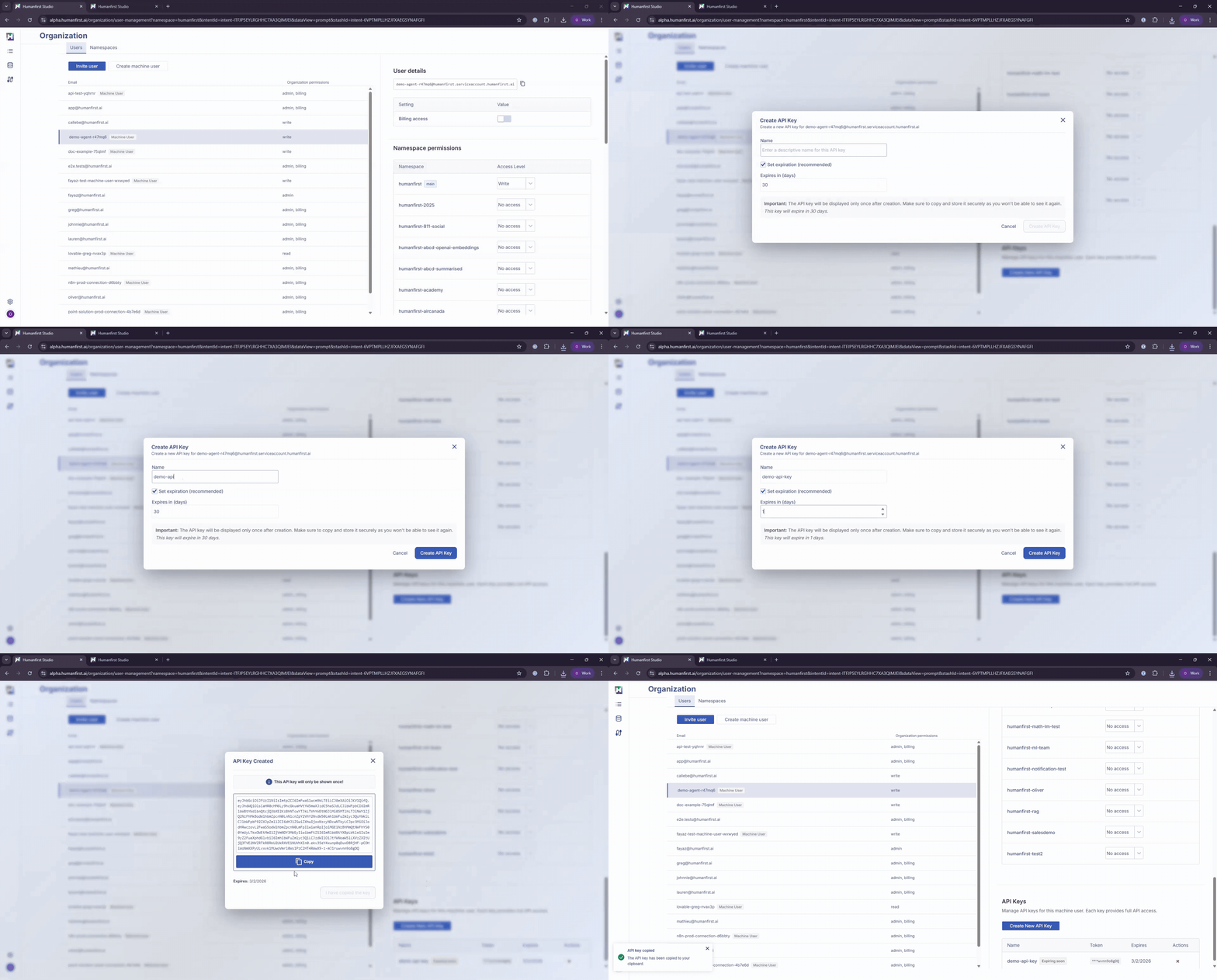
- Select the Machine User that has been created.
- Scroll to the bottom and select Create New API Key.
- Add a name for the API key.
- Set expiration as required.
- Copy your API key.
Important: The API key is shown only once. Copy it and store it securely before closing the dialog.
Step 3: Configure Credentials in n8n#
- Navigate to the Credentials page in n8n and click Create Credential.
- Search for HumanFirst and select HumanFirst API.
- Fill in the following fields:
API Key
Paste the API key generated for your machine user.
Base URL
Leave as the default https://api.humanfirst.ai unless on a dedicated instance.
API Version
Leave as the default v1alpha1.
Namespace for Test
Enter an existing namespace name — used to validate the credential on save.
- Click Save. n8n will test the connection and confirm the credential is valid.
Step 4: Build Your Workflow#
- Click + New workflow or open an existing one.
- Click + on the canvas to add a node, then search for HumanFirst.
- Select the HumanFirst node and add it to the canvas.
- Choose your saved credential from the Credential dropdown.
- Select a Resource and Operation and fill in the required parameters.
- Connect the node to upstream triggers (e.g. Schedule, Webhook) and downstream nodes as needed.
- Click Test workflow to verify output, then toggle Active when ready.
Available Operations#
Add Column to CSV
Append constant-value columns to an existing binary CSV file before importing or passing downstream.
Convert JSON to CSV
Flatten structured JSON items into CSV format for import into a HumanFirst Conversation Source.
Import CSV File
Upload a CSV file directly into a specified HumanFirst Conversation Source.
Import Document
Upload a document to HumanFirst and trigger the indexing pipeline.
List Playbooks
Return all playbooks in the specified namespace, including names and IDs.
Get Playbook
Retrieve full metadata for a single playbook by ID.
Create Prompt
Create a new prompt inside a HumanFirst playbook with name, content, and configuration.
List Prompts
Return all prompts within a given playbook.
Get Prompt
Fetch full details of a specific prompt by its ID.
Update Prompt
Modify the content or configuration of an existing prompt.
Delete Prompt
Permanently remove a prompt from a playbook by its ID.
Trigger Prompt With Input
Execute a prompt against an input, with support for mention overrides to substitute variables at runtime.
Run Full Pipeline Workflow
Trigger a complete HumanFirst pipeline, wait for it to complete, and export the resulting data.