Lovable#
The HumanFirst + Lovable integration lets you build AI-powered web apps that call HumanFirst packages as their backend. Lovable generates the front-end and deploys a Supabase Edge Function that connects to HumanFirst at runtime — so your app can call any package and return results to your users.
Overview#
- Prerequisites
- Step 1: Set Up Your HumanFirst Package
- Step 2: Connect Supabase to Lovable
- Step 3: Create a Machine User and API Key
- Step 4: Build the App UI in Lovable
- Step 5: Configure and Run the Super Prompt
- Step 6: Add Your API Key to Supabase Secrets
Prerequisites#
- A HumanFirst account with a package ready to use
- A Lovable account at lovable.dev
- A Supabase project
Step 1: Set Up Your HumanFirst Package#
Before building in Lovable, make sure your HumanFirst package is configured to accept input from the app.
- Open your package in HumanFirst.
- Ensure the package has a placeholder variable (e.g.
website) that will receive the user's input from Lovable. - If the package references a collection for that placeholder, make sure the collection is empty — any existing content will be overridden by the value passed in from Lovable.
- Note down your namespace, playbook ID, and prompt ID — these are available in the URL when you open your workspace in HumanFirst.
Step 2: Connect Supabase to Lovable#
Lovable uses Supabase to host the Edge Function that connects your app to HumanFirst. You need to link your Supabase project before building the backend.
There are two ways to do this:
Option A — from the Lovable canvas:
- Click the + icon in the Lovable editor.
- Go to Connectors → Databases → Add Supabase organization.
- Select the Supabase project you want to use.
Option B — from Lovable Settings:
- Go to Settings → Connectors → Supabase.
- Click Enable, then Manage connected organizations and add your Supabase organization.
- Select your project from the Connectors panel.
You can also connect Supabase after building the UI — Lovable will prompt you to connect a project when you start building the backend.
Step 3: Create a Machine User and API Key#
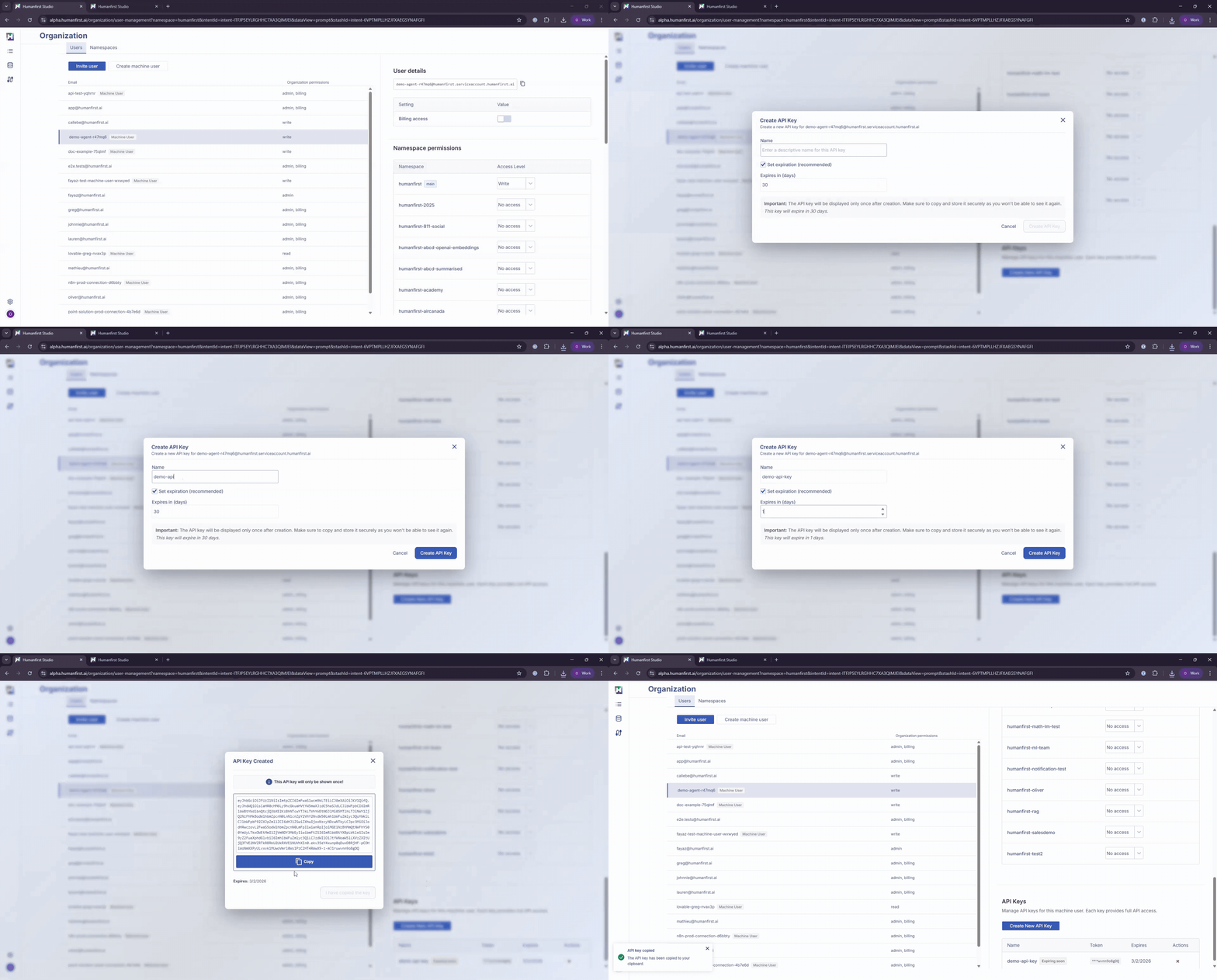
- Click on the HumanFirst icon in the top left corner.
- Select Organization.
- Click Create Machine User.
- Add a name for the Machine User — use something descriptive like
lovableso you can identify this account later. - Set the Organization Access Level to Read.
- Under Namespace Permissions, set the access level for any namespace your app will need to access. Leave all others at No access.
- Click Create Machine User at the bottom of the page.

- Select the Machine User that has been created.
- Scroll to the bottom and select Create New API Key.
- Add a name for the API key.
- Set expiration as required.
- Copy your API key.
Important: The API key is shown only once. Copy it and store it securely before closing the dialog.
Step 4: Build the App UI in Lovable#
Build the front-end first before adding any backend logic.
- Start a new project in Lovable.
- Enter a prompt describing only the UI — for example: "Create a cool FAQ generator web app. It accepts the URL of a website and has a Generate FAQ button. Build the UI first."
- Wait for Lovable to generate and load the preview. At this point you should have a working UI with no backend connected yet.
- Review and refine the UI before moving on.
Step 5: Configure and Run the Super Prompt#
The super prompt is a pre-written set of instructions that tells Lovable exactly how to build the Supabase Edge Function connecting your app to HumanFirst. All the integration logic is handled automatically — you just need to fill in your specific configuration values.
- Open the super prompt template.
- Fill in the following values:
Namespace
Your HumanFirst namespace — available in the URL of your workspace.
Playbook ID
The ID of the package you set up in Step 1 — available in the workspace URL.
Prompt ID
The ID of the specific prompt within the package — available in the workspace URL.
Mention Key
The placeholder variable name used in your package (e.g. website).
- Copy the completed super prompt and paste it into the Lovable chat, then press Enter.
- Lovable will build the Supabase Edge Function and wire it to your UI. The function will be named and deployed automatically.
Step 6: Add Your API Key to Supabase Secrets#
The Edge Function needs your HumanFirst API key at runtime. Lovable will tell you to set this up — store it as a Supabase secret so it is never exposed in your code.
- Open your Supabase project and navigate to Edge Functions → Secrets.
- Click Add secret, name it
PRODUCTION_API_KEY, and paste in the API key from Step 3. - Save. The secret will appear in your secrets list.
Once the secret is saved, return to your Lovable app and test the full flow — enter a value in the input field, click your generate button, and confirm the result is returned from your HumanFirst package.