Working With Packages#
Packages are how different instructions, context and data are assembled together. Agents can call packages to guide them through a specific task, skill, or data operation. Packages can also be manually brought to your workflow, app, or platform of choice.
Data and collections can be added to packages as artifacts, where you can define how they'll be used.
Overview#
- Composing a Package
- Exploring artifacts
- Adding Dynamic Variables to Your Package
- Executing a Package In-Platform
- Exporting and Publishing Packages
Composing a Package#
In Compose mode, open the Packages panel on the left side menu. Select Add New Package, name your package, and open the package you create.
Packages consist of plain text and references to artifacts. Artifacts can be instructions, collections, knowledge, saved data views, and other kinds of context that give the AI what it needs to make the right decisions, generations, interpretations, etc.
Artifacts#
You can add artifacts to a package using any of the following methods.
Create New Artifacts#
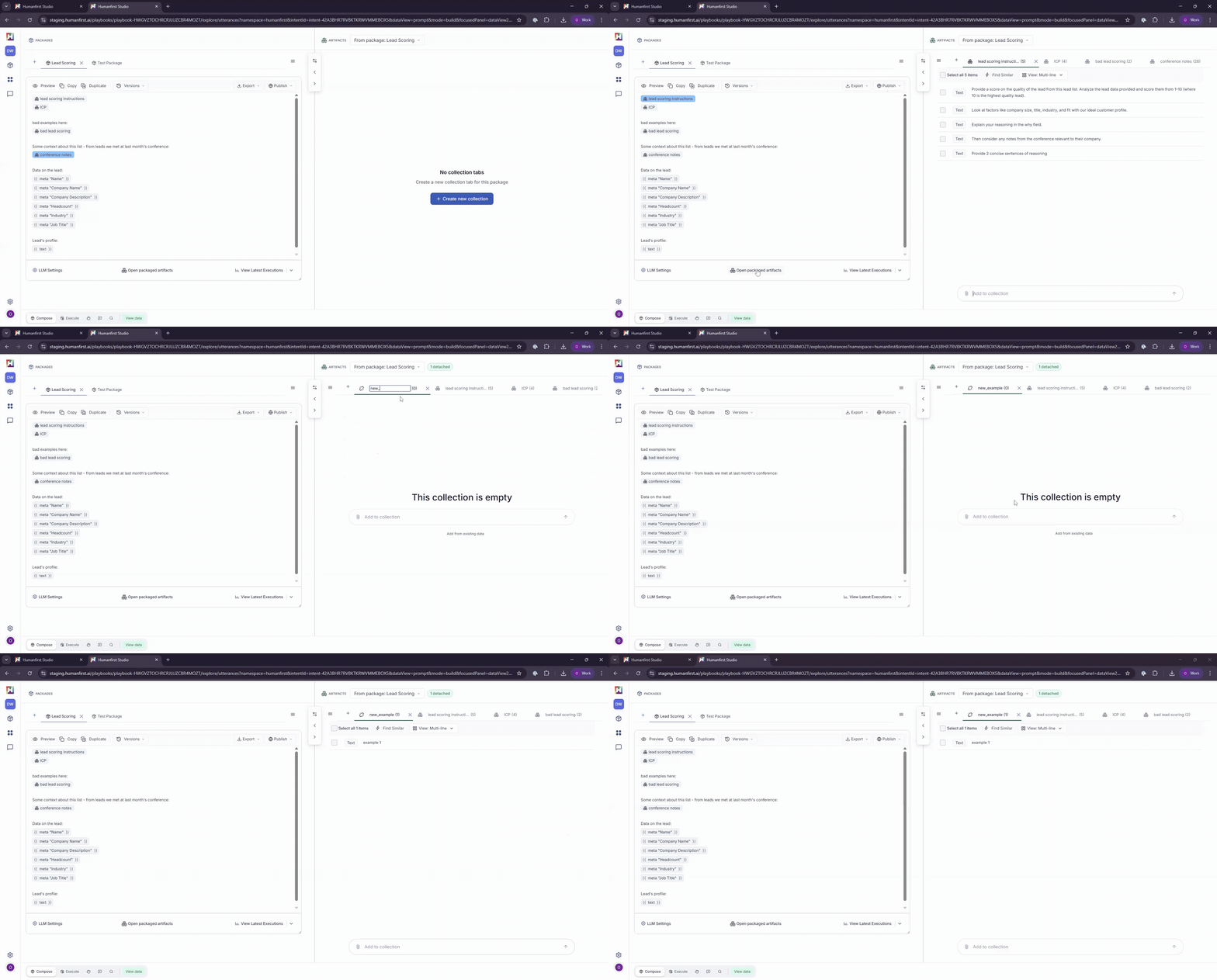
Within the text editor, you can type "@" and enter the name of your artifact. This will create an empty collection in the Artifacts pane, where you can add text or upload files.
Any new artifacts you create in Compose mode will be added to your collections, so you can reuse them across other packages.
Add a Collection#
Type "@" and select from the list of existing collections. Selecting a collection adds it to the package as an artifact. In compose mode, you'll see it appear on the right Artifacts pane.
Any changes you make to the artifact in Compose mode will be reflected back in its original collection.
Reference a Saved Data View#
You can add curated datasets to your package by referencing a saved data view. Type the "@" button and select the view from the list. By clicking on the data view pill, you can choose whether you want to directly ingest all of its data into the package (default, "As Text"), or whether you want the package to leverage RAG to find only the necessary data ("As Function").
Add to New or Existing Artifacts from the Data View or the Chat#
You can build out your artifacts from the chat or data view. Select the records you want to add and navigate to "Add to Package Collection". You can create a new artifact, or add items to an existing artifact. If you create a new artifact, reference it in the package by typing "@" in the text editor.
Viewing Artifacts#
You can click the artifacts icon at the bottom of the text editor to see all artifacts associated with your package.
If you've built an artifact that's not yet been added to the package in the text editor, it will be represented as Detached. Detached artifacts are saved as Collections, but won't be part of your package unless you add the reference.
Adding Dynamic Variables to Your Package#
System variables allow you to add dynamic placeholders in your package. These will be populated by the input data the package receives at runtime.
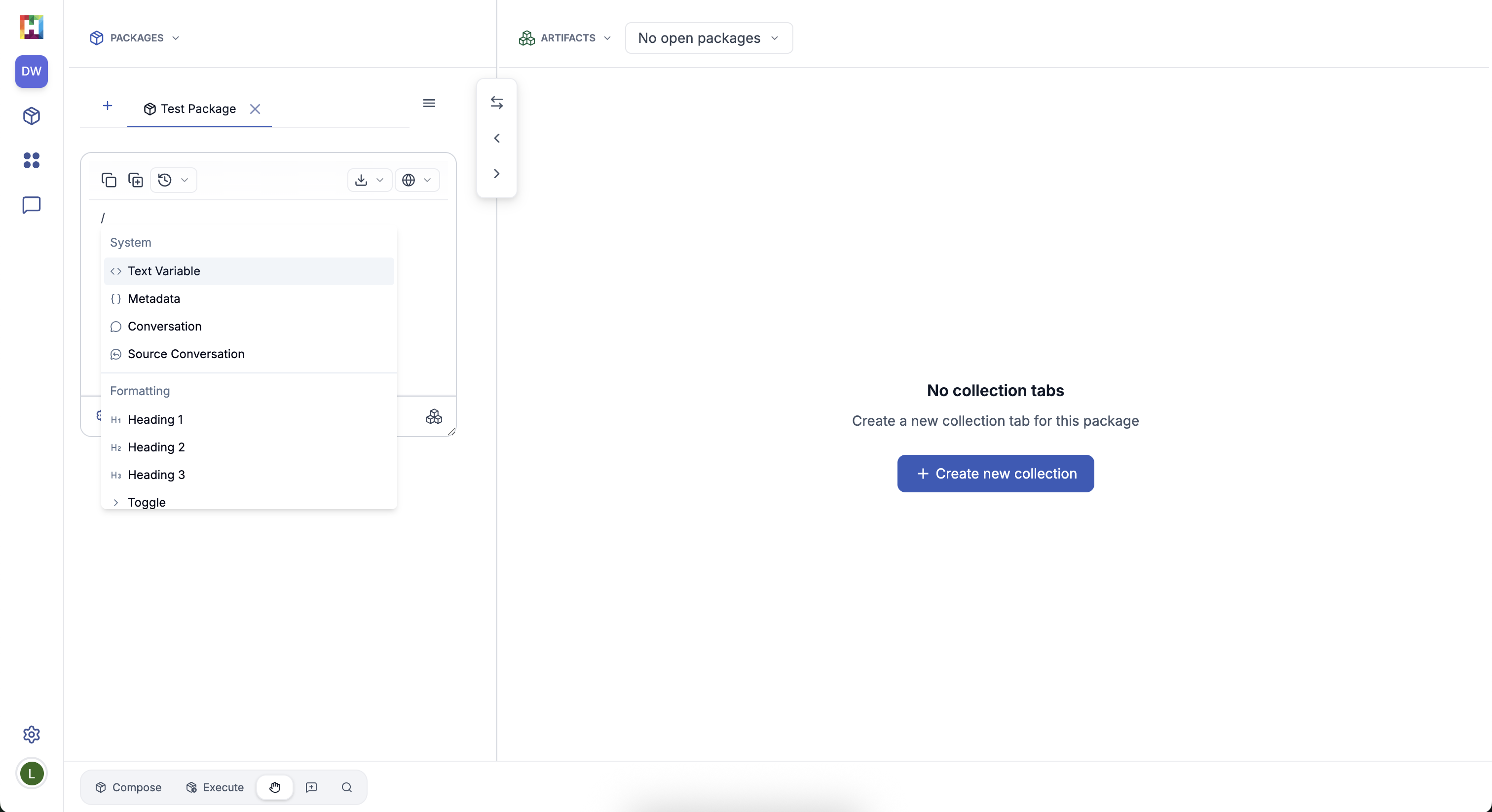
Text Variable
Allows input data to be added to the package. Use the text variable when you're working with text data (plain text, documents, CSVs, PDFs, etc). If you're executing the package over multiple records, the text variable will populate with one record per run.
Metadata
Allows the specified metadata field to be populated from the input data as part of your package (i.e. the sentiment score attached to a customer review). Select the metadata variable and replace the placeholder "key" with your desired field.
Conversation
Works the same as a text variable, but allows you execute the package over multi-turn conversations, preserving the speakers and order.
Source Conversation
Works the same as a conversation variable, but allows you to execute the package over the source conversation. Use source conversation when you've performed a transformation over conversational data (i.e. generated a sentiment score) and want to access the original source (i.e. pull keywords from source conversations for all sentiment scores above 7).
Executing a Package In-Platform#
Once you've composed a package, you can execute it over any amount of data in your data view to assess how it performs, or to transform that data to be used more efficiently.
Packages can also be run at scale using Pipelines.
Executing a Package#
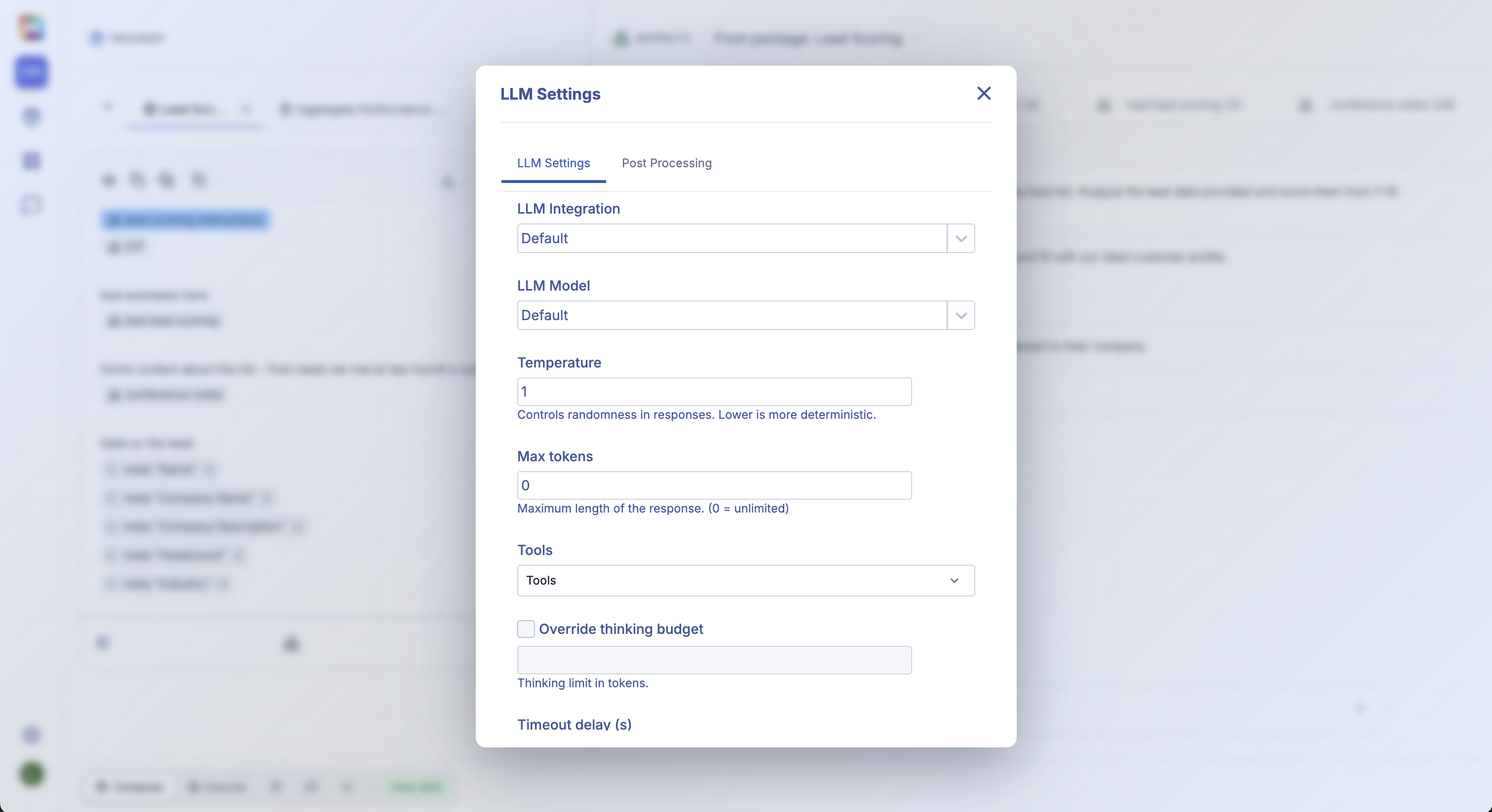
In Compose or Execution mode, you can select the LLM settings and tool rules associated with your package. This includes the LLM provider, model, temperature, token cap, available tools, thinking budget, and timeout delay.
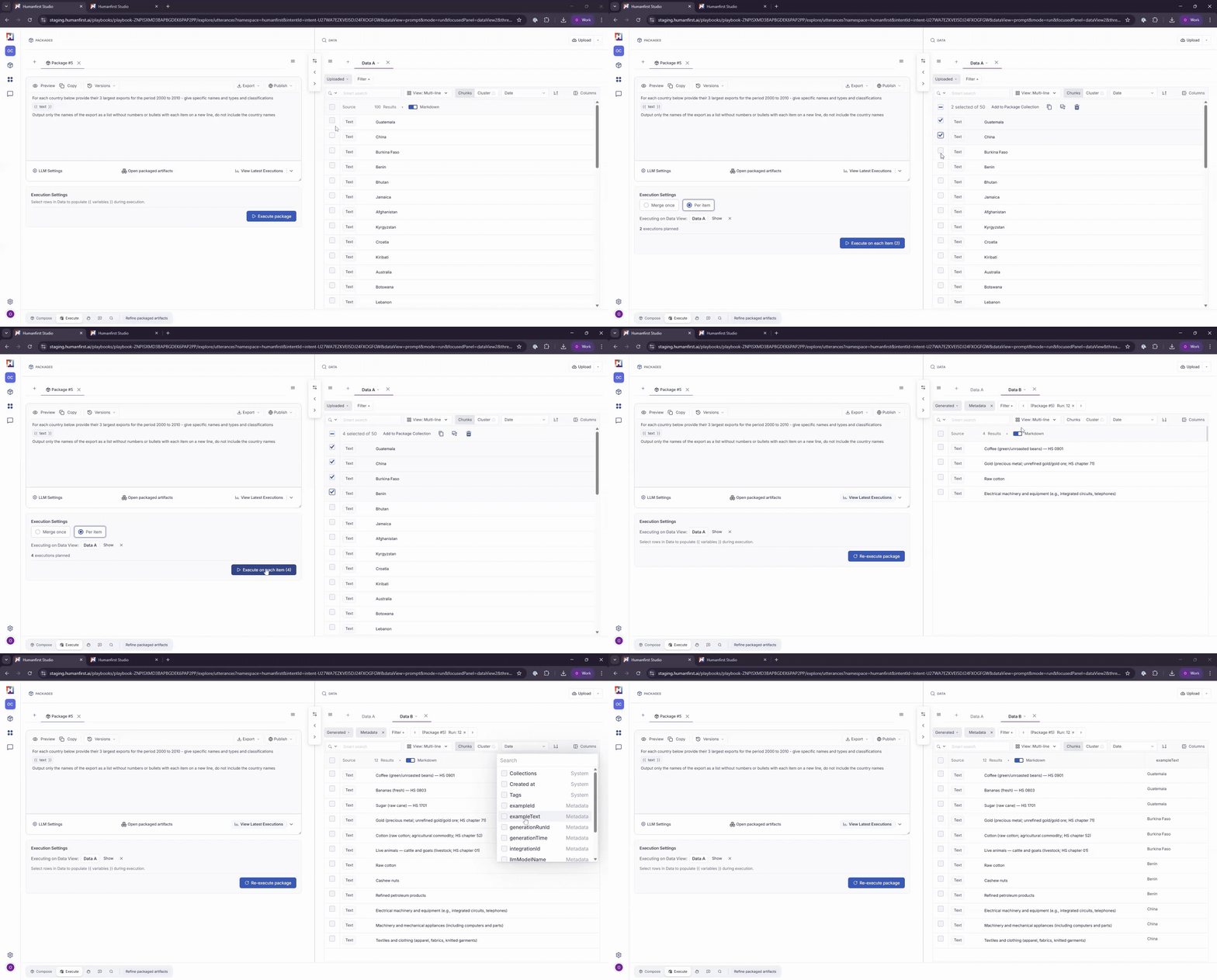
In Execution mode, you can execute the package. If you've added a system variable, as described above, you can select the input data you want the package to run against.
HumanFirst allows packages to be run in parallel against any number of inputs. Selecting multiple records from the data view will generate an equal number of LLM calls, so the package works on one input at a time. You can select "Preview" at the top left corner of the text editor to see the full rendering of each package with the input data included.
Viewing Results#
Generated results will appear in your data view as a generated dataset. You can explore the results using any of the data view settings. You can see previous generations by using the Run filter.
You can also view a history of your package's executions using the "View Latest Executions" button on the bottom right of the text editor.
Add the exampleText column to your data view to see each generated output next to its associated input. You can toggle between Single Line, Multi-Line, Full View, and markdown, and click into any generated item to see more information.
Generated records can be added to your collections, or added back to your package as artifacts (i.e. as few shot examples of good or bad generations).
Iterating on a Package#
We've built intuitive, human-led iteration loops into the user experience. Viewing your generated results against their associated inputs allows you to discern the quality of the generation and catch failure patterns.
By clicking the "Refine Packaged Artifacts" button in the bottom bar, you'll see a split screen view with your artifacts on the left and your results on the right. Here you can make adjustments to the artifacts, add generated data as few shot examples, and add more context to align the AI's performance.
All execution runs are attached to the package, so you can compare generations as you adjust.
Exporting Packages#
Packages you build in HumanFirst can be downloaded manually and added to any other platform as a system prompt, workflow step, agent skill, or in-line prompt. They can also be fetched via our API, so agents can call them dynamically. Our goal is to allow you to work efficiently with AI-relevant data, build the packages that support aligned AI behavior, and easily access them from anywhere.
Exporting#
Copy Package Contents
Click the Preview button on the top left side of the text editor. You'll see the full package contents, and you can click Copy contents in the bottom menu to copy the plain text of your package. Paste the contents wherever you want to use this package (Custom GPT, Zapier, Claude Projects, etc).
Download
Click the Export button on the top right side of the text editor and choose Download as Markdown. This will give you a .md file containing the full contents of your package. You can use this file wherever you're working (add examples).
Options to export your package as a Claude skill and .zip are coming soon.