Pipelines#
A pipeline runs a package over large volumes of data at once. HumanFirst handles the complexity of running at scale automatically, including error handling and caching.
For example, you might use a pipeline to run a package that analyses customer support responses across an entire dataset, or to extract structured dimensions from thousands of research documents.
Overview#
- Creating a Pipeline
- Data View Settings
- Monitoring Progress
- Caching
Creating a Pipeline#
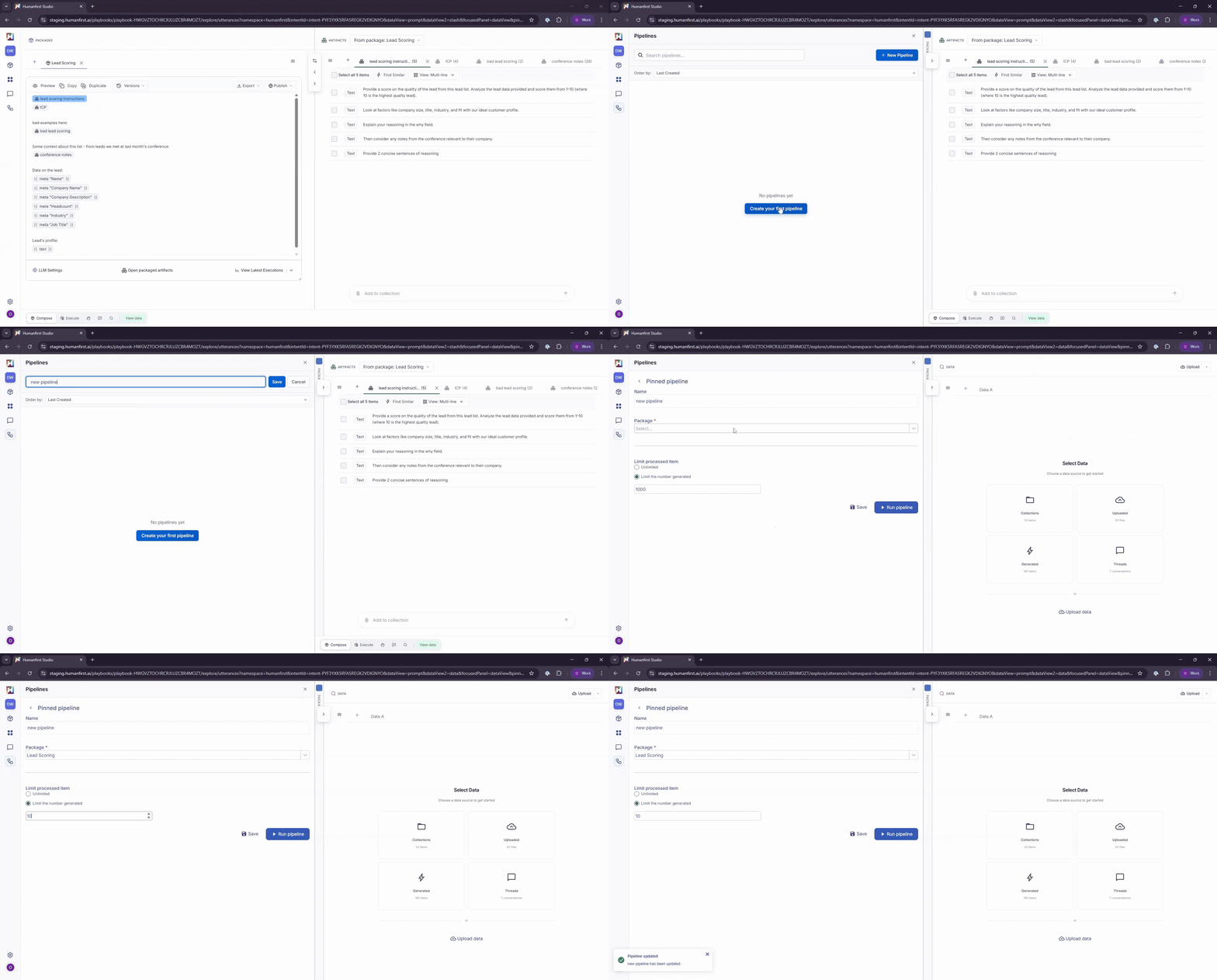
- From the side menu, select Pipelines.
- Select New Pipeline.
- Give the pipeline a name.
- Select the package you want to run.
- Set a limit on the number of data items to process, or leave it unlimited.
Note: Your pipeline will run over every item in your current data view — that could be 100 items or 100,000. Configure your data view filters before running.
Data View Settings#
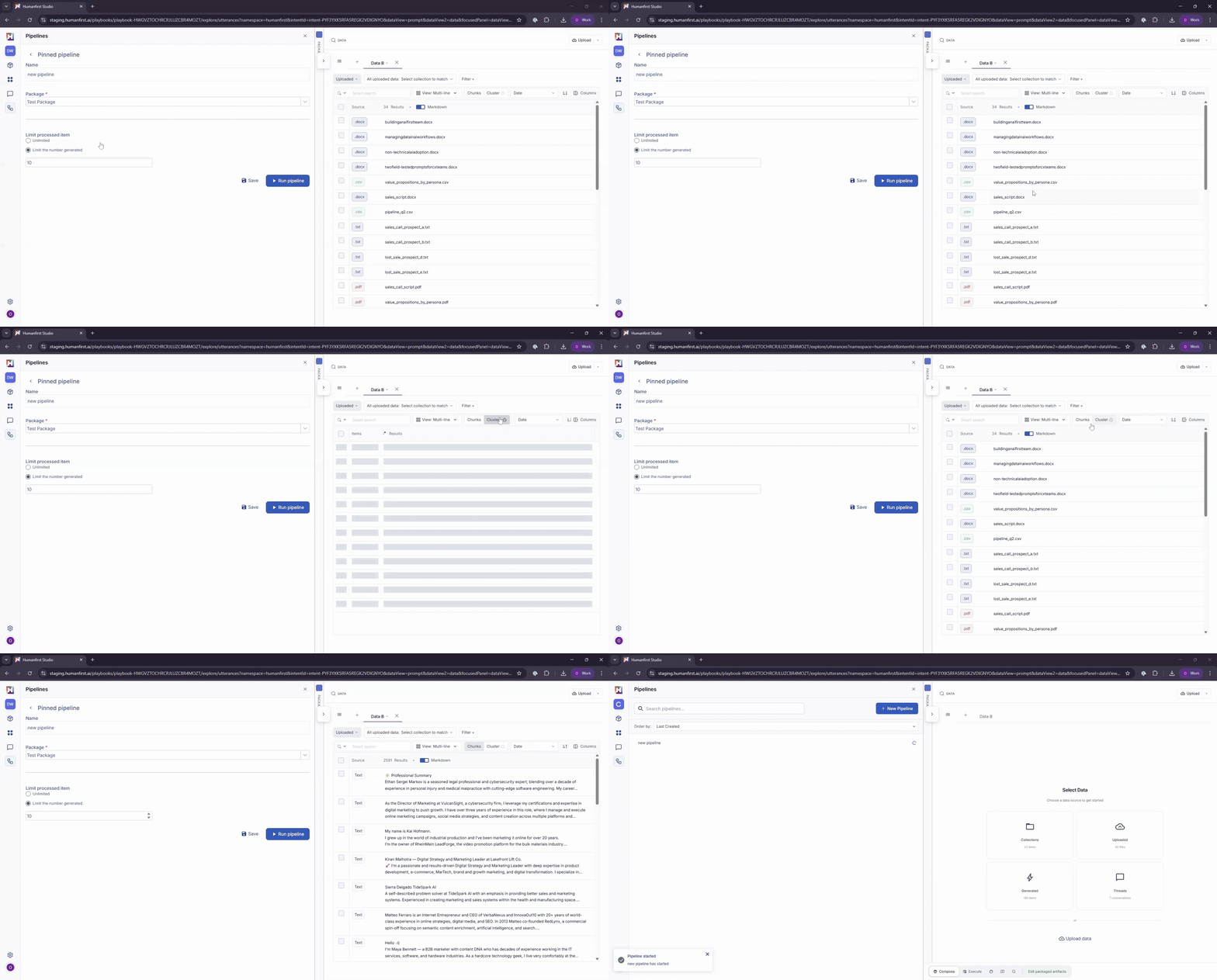
Before running a pipeline, configure your data view carefully. The pipeline will only process items that match your current settings.
Data type
Select whether to run over uploaded data, generated data, or a collection.
Filters
Apply filters for date, metadata, or tags to narrow the dataset.
Chunk settings
If your data view is not set to show all chunks, the pipeline will only run over the first chunk per item.
Cluster settings
If clustering is enabled, the pipeline will only run over the top item in each cluster.
Date order
Ensure your data is ordered as expected before running.
Monitoring Progress#
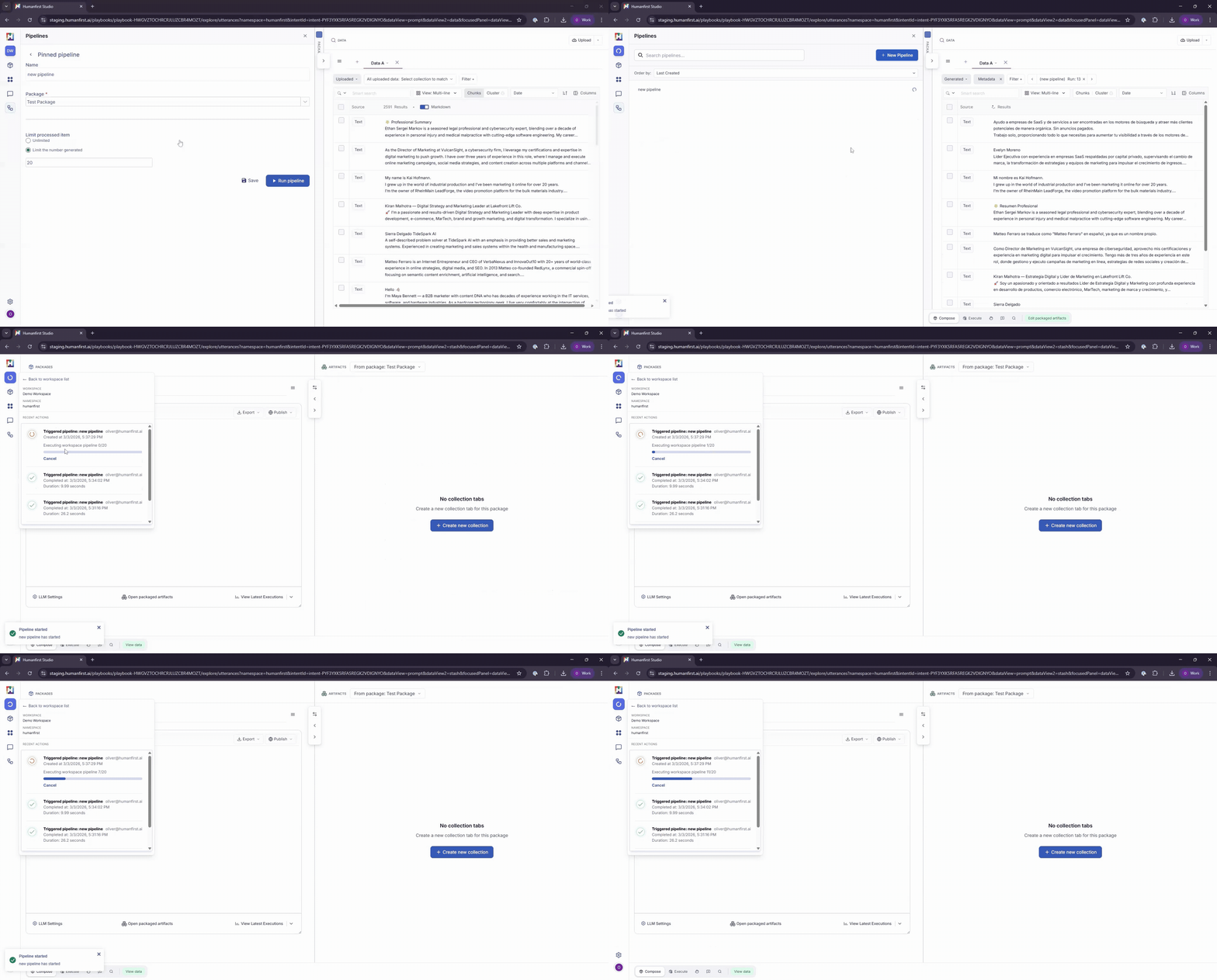
Pipeline progress can be monitored in the top left-hand corner of the screen.
Viewing Results#
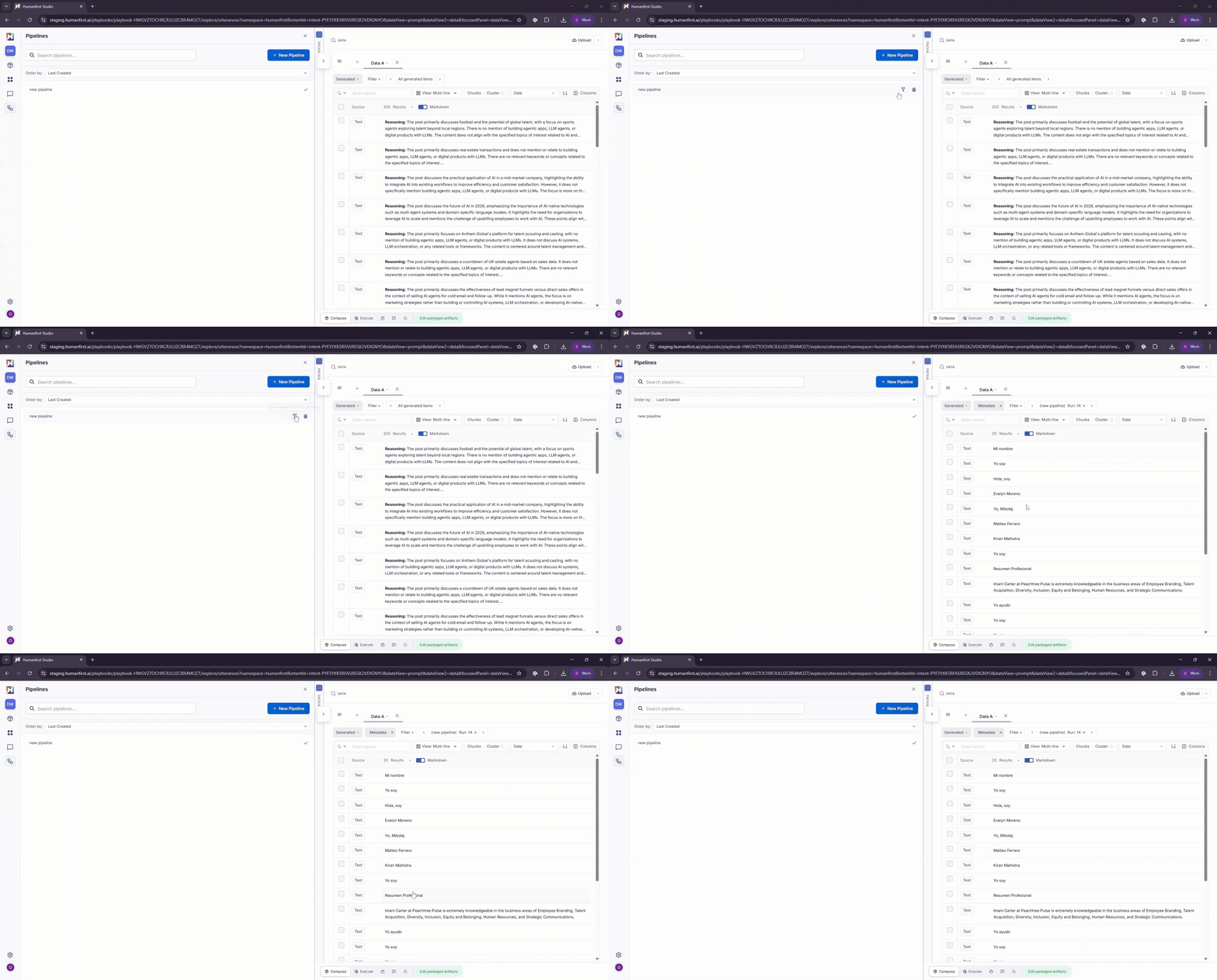
Pipeline results can be viewed in the data view, by selecting the filter option on the pipeline panel.
Caching#
Pipeline results are cached. Unless the package or data view changes, re-running a pipeline updates the outputs from the initial run rather than generating a new set of results.
For example: running a pipeline over 250 items and then increasing the limit to 2,000 will generate outputs for the remaining 1,750 items — not a new set of 2,250.